Dynamics 365 F&O overview
Connect Microsoft Dynamics 365 Finance & Operations — connection flow and available support
This page covers Microsoft Dynamics 365 Finance & Operations (F&O) — Microsoft's enterprise-grade ERP for large organisations.
It does not cover Microsoft Dynamics 365 Business Central, the separate accounting/ERP product for small and mid-sized businesses. If your business runs Business Central, follow Dynamics 365 Business Central overview instead.
Your financial institution has requested to view, create or modify your business's financial data via your Microsoft Dynamics 365 Finance & Operations (F&O) account. This is needed to deliver financial services to you. You will follow a secure connection flow to establish a digital link to your Dynamics 365 F&O account.
Check your software version
If you need to check the version of the accounting software you are using, follow these steps in Microsoft Dynamics 365 Finance & Operations:
- Log in to your Microsoft Dynamics 365 Finance & Operations instance.
- Click on the Question mark (
?) symbol on the top right to view the Help & Support menu. - Click About to view platform and product versions.
- Select the Licenses tab to view the serial number and Versions tab to view the installed models.
Prerequisites
Before you begin, make sure that you have credentials for a user with administrator privileges for both Microsoft Azure and for Dynamics 365 F&O.
To check if the user ID you logged in with has full administrator privileges in Dynamics 365 F&O, follow these steps:
- In Dynamics 365 F&O, search for Users and select the result that displays the System administration > Users menu path.
- In the Users screen, search for your User ID, User name, or Email. Click on the User ID of the matching entry to view user details.
- In the User details screen, check that a System administrator role is assigned under User's roles.
Initiate connection flow
To establish a digital connection with Dynamics 365 F&O and enable your financial institution to access your financial data, you will jump between Microsoft Azure, Dynamics 365 F&O, and our connection flow.
First, follow the Link URL provided to you by your financial institution. Then, follow these steps to initiate the connection flow:
-
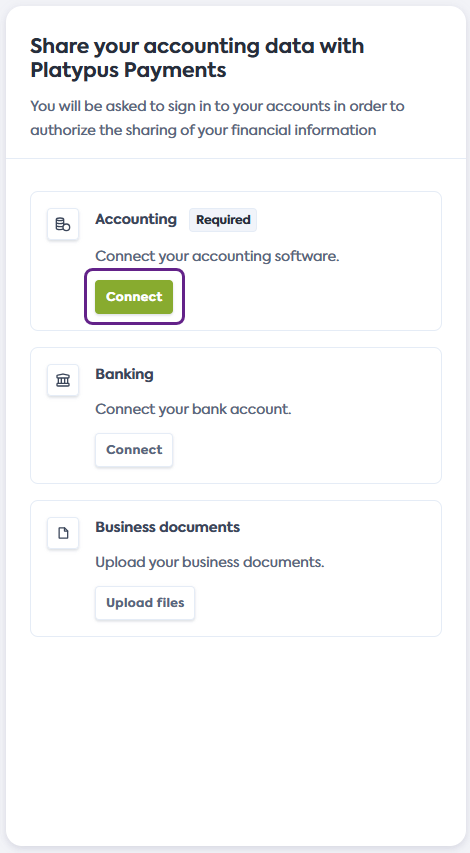
On the Share your financial information screen of the connection flow, click Connect in the Accounting tile to initiate a connection to Dynamics 365 F&O.
You might not see this screen if your financial institution disabled this selection.
-
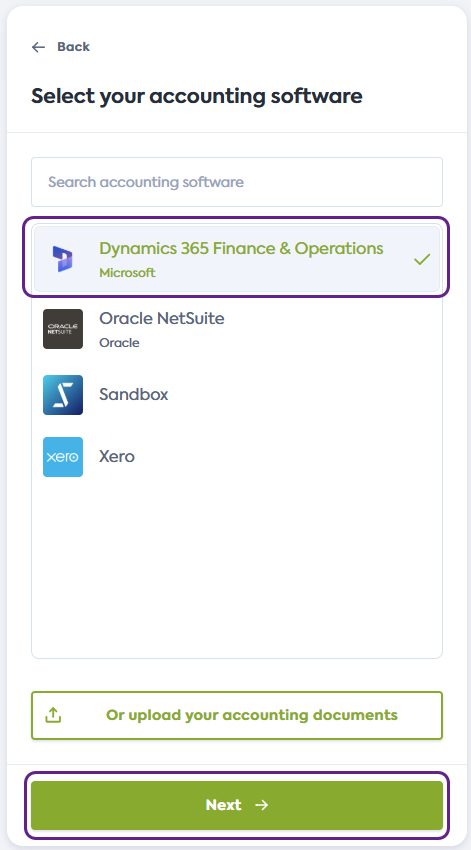
On the Select your accounting software screen, scroll or search for Dynamics 365 F&O. Click the tile to select, then click Next.
-
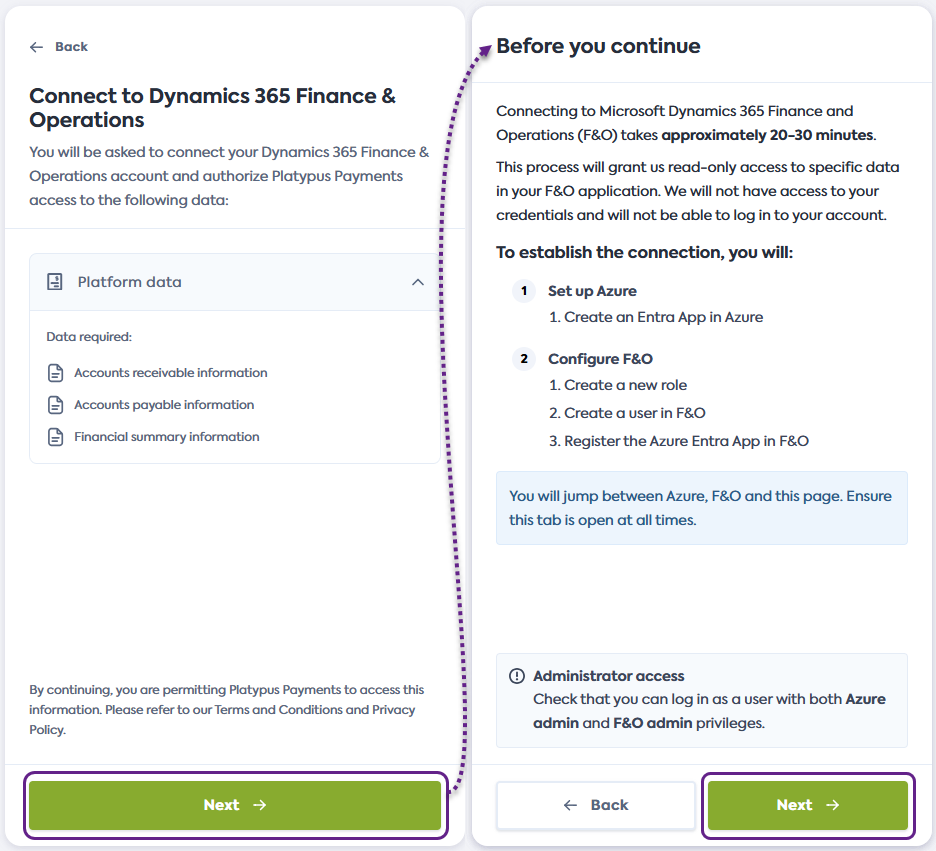
On the Connect to Dynamics 365 Finance & Operations screen, review the data you will provide access to, then click Next. You will see the initial Before you continue screen.
Read next
The subsequent connection steps take place in Azure and in Dynamics 365 F&O. Follow our dedicated support guides to complete these steps, starting with Create Entra App in Azure:
- Create Entra App in Azure
- Create new role in Dynamics 365 F&O
- Create new user in Dynamics 365 F&O
- Register Entra App in Dynamics 365 F&O
Interactive walkthrough
Alternatively, follow our walkthrough below to see each step in practice. Click the pulsing dot to begin.