Register Azure Entra App in Dynamics 365 F&O
Get help if you have questions or experience issues when registering an Azure Entra App in Microsoft Dynamics 365 F&O
Finally, you will register the Entra App you have created in Dynamics 365 F&O. This will associate the Entra App with the dedicated user record and allow us to securely interact with it while providing all the required permissions.
Register Entra App
-
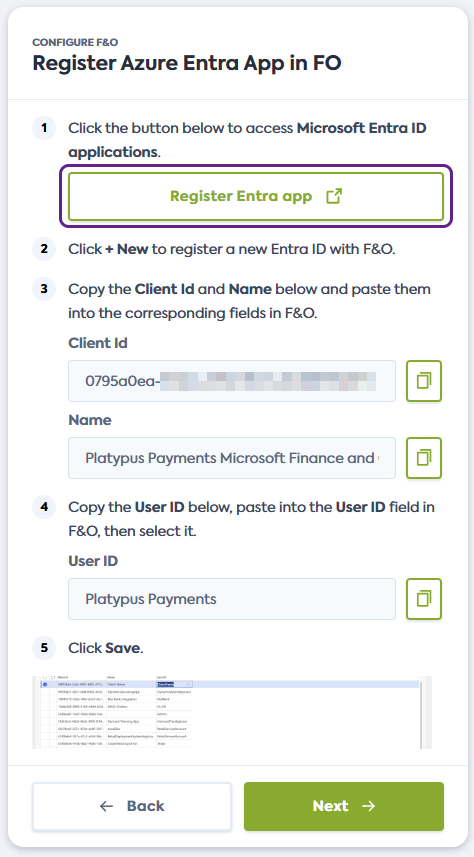
On the Register Azure Entra App in F&O screen of the connection flow, click the link provided. It will open the Microsoft Entra ID applications page of Dynamics F&O in a new window.
Alternatively, manually navigate to Microsoft Entra ID applications in your F&O instance.
-
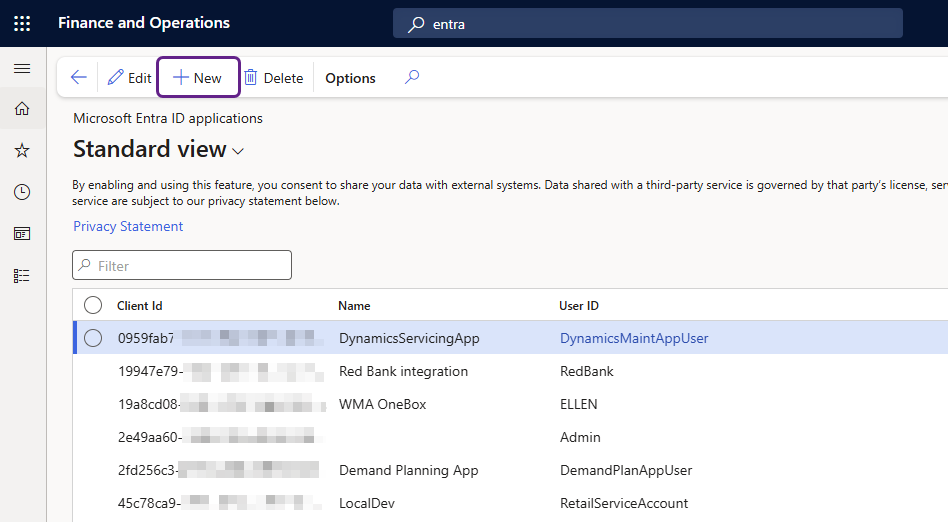
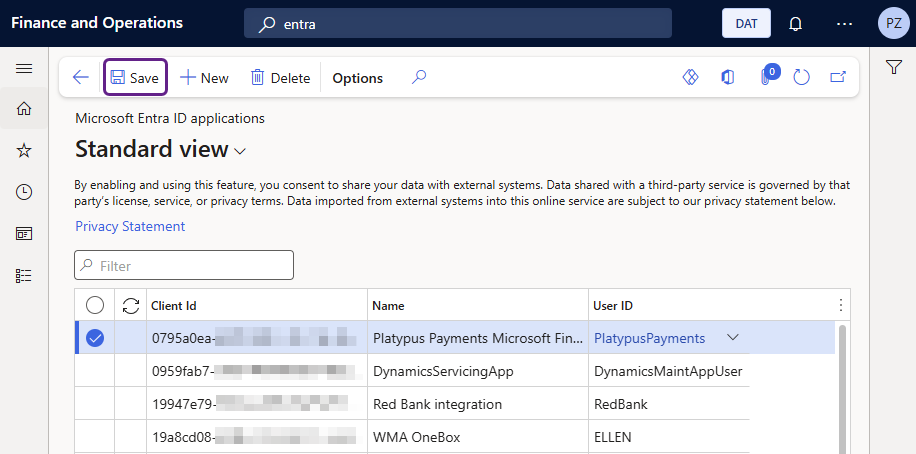
In the Microsoft Entra ID applications, click + New to register a new Entra ID application with F&O.
-
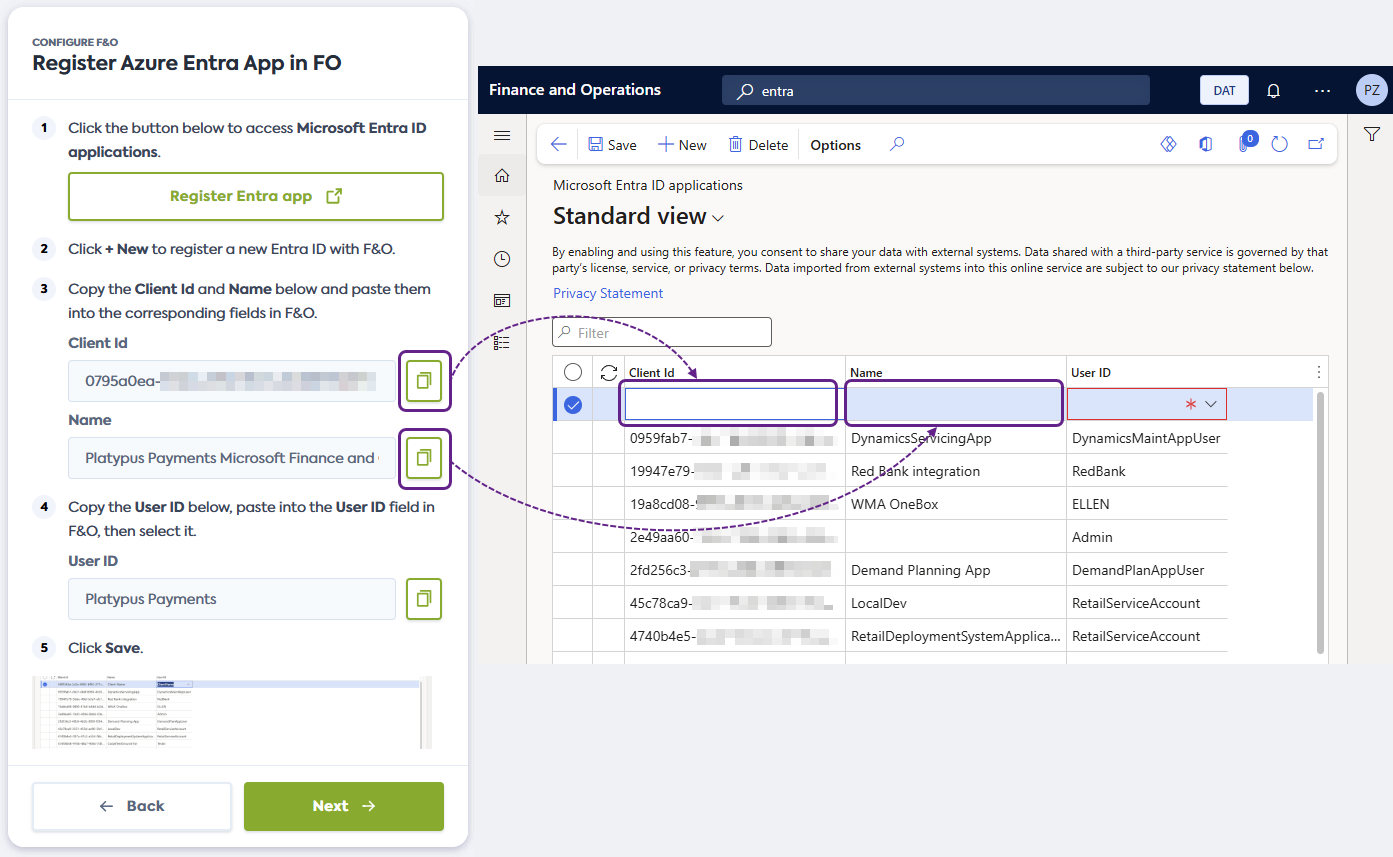
Copy the Client ID and the Name provided in the connection flow and paste them into the corresponding fields in Dynamics 365 F&O.
-
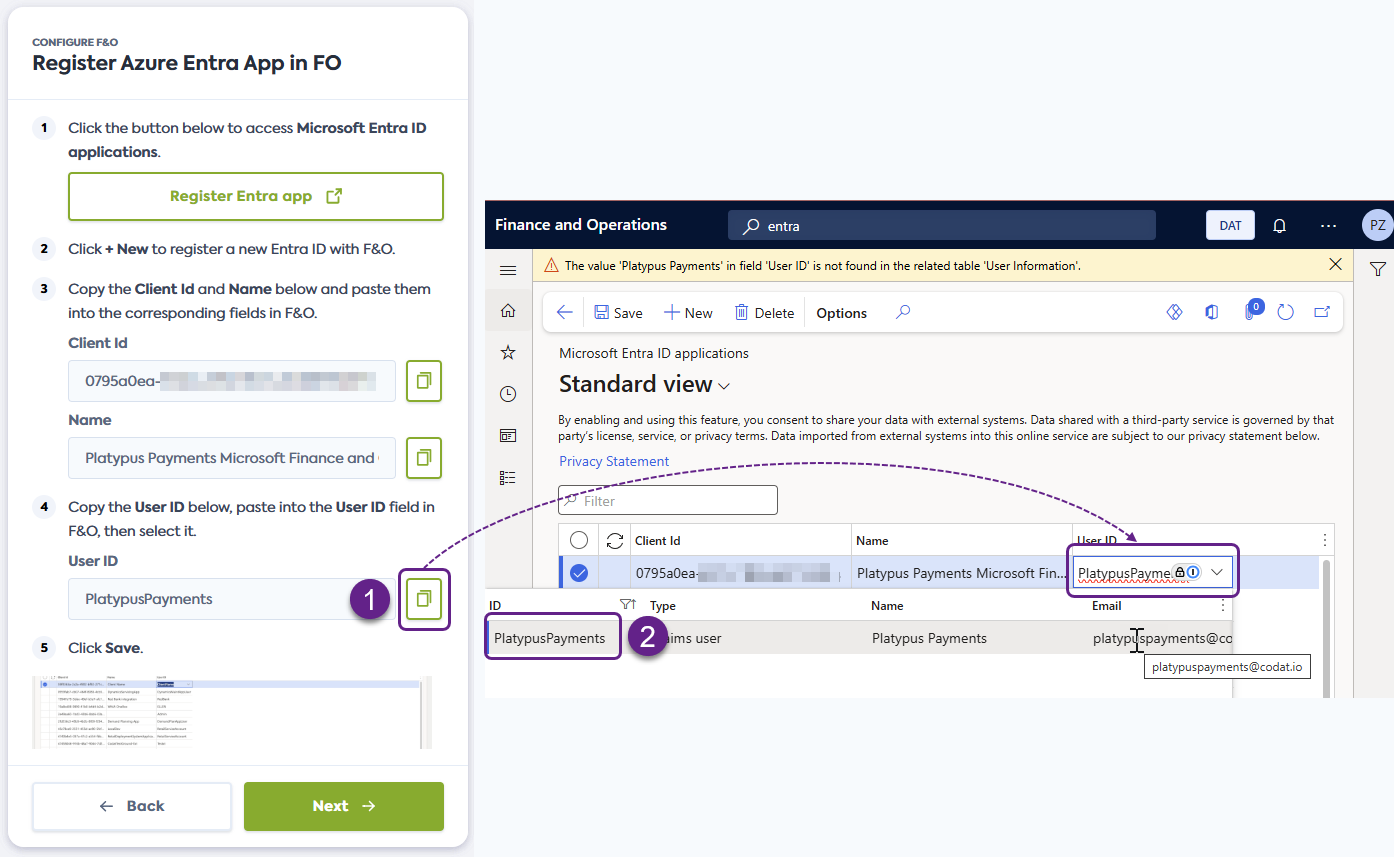
Copy the User ID from the connection flow, paste it into the User ID field in F&O, then click the search result to select it.
-
Finally, click Save to finalize the registration of the Entra ID App.
-
Click Next to trigger the connection to Dynamics 365 F&O.
Finalize connection
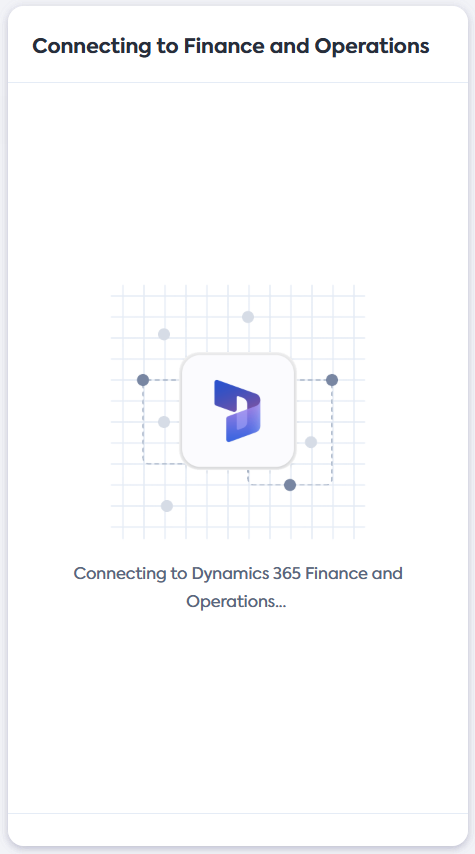
Next, you'll see a Connecting to Finance and Operations window in the connection flow. This means we are actively trying to establish a digital connection with your Dynamics 365 F&O instance.
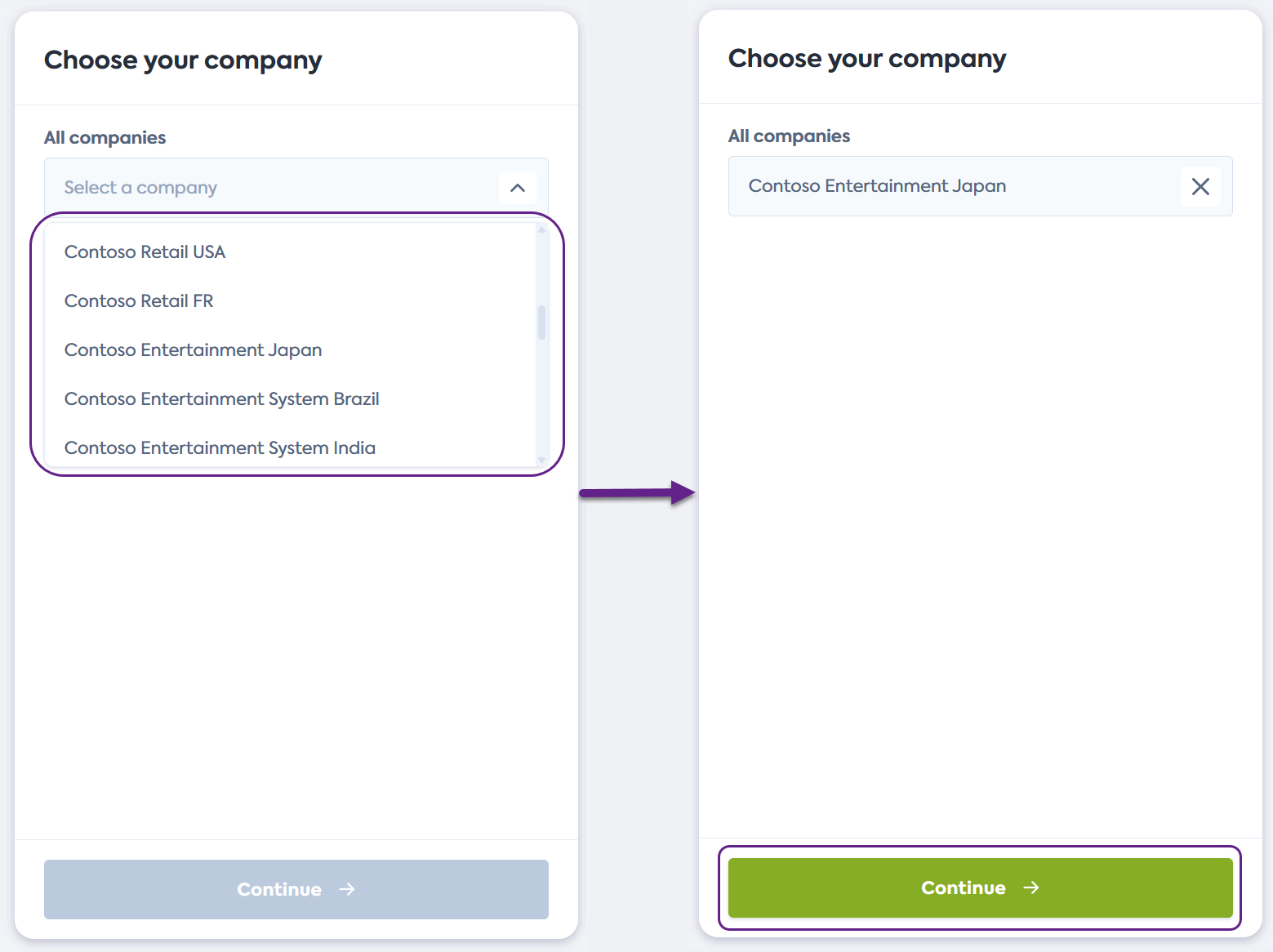
If there are multiple companies associated with your F&O account, you will see the Choose your company dropdown. Select the company you want to connect and click Continue.
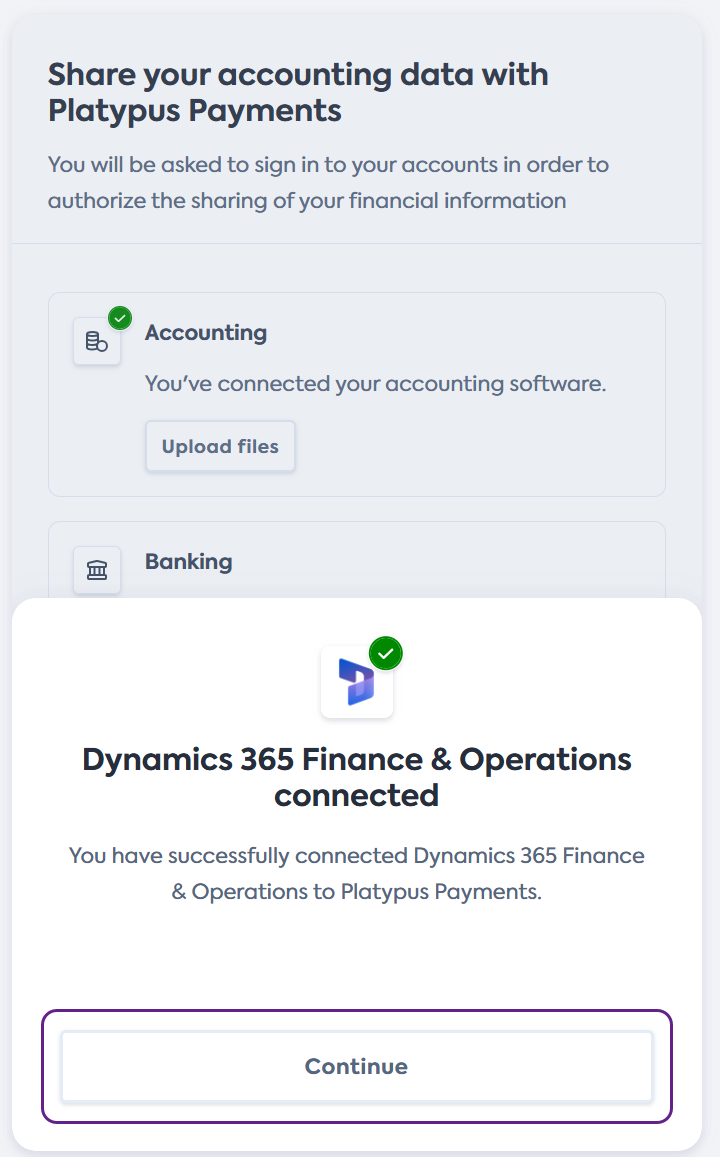
Once the connection is confirmed, you will see a confirmation window. Click Continue, then complete and exit the flow.
This completes the digital connection flow required to share the financial data from your Microsoft Dynamics 365 F&O account.
Resolve errors
The Entra App isn't registered
You may encounter the The Entra App isn't registered error when finalizing the digital connection to your Dynamics 365 F&O instance. This error occurs when the Entra App wasn't correctly registered in F&O.
To resolve, click Try again in the connection flow. You will be redirected to the Register Azure Entra App in F&O screen. Complete the steps provided in the flow and review Create security configuration for detailed instructions.
If the issue persists, contact your financial institution for additional support and walkthrough.
Something went wrong
In rare circumstances, you may encounter the Something went wrong error when there is an unexpected issue with the digital connection to F&O. To resolve, click Try again to retrigger the connection. If retrying doesn't resolve the error, contact your financial institution for additional support.